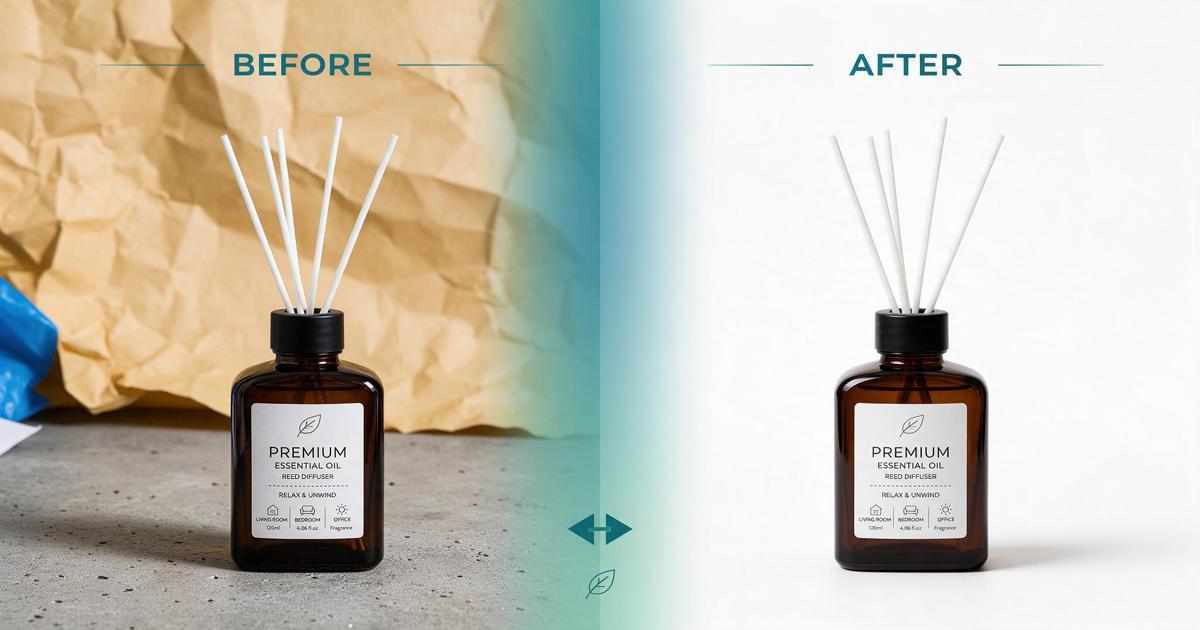
# How to Remove Background from Photo Online Free (2026 Guide)
## Why Remove Background from Photos?
Removing the background from photos has become essential in 2026. Whether you're an ecommerce seller, photographer, or social media enthusiast, clean backgrounds make your images look professional.
**Common uses:**
- Product photos for Amazon, Shopify, eBay
- Profile pictures for LinkedIn, Instagram
- Passport size photos
- Marketing materials and advertisements
- Social media posts
A clean, white, or transparent background helps your subject stand out and looks more professional.
## 5 Best Free Background Remover Tools in 2026
Here are the top 5 free tools to remove background from photos online:
### 1. Remove.bg
**Best for:** Quick automatic removal
**Features:**
- AI-powered automatic removal
- No manual editing required
- Free for standard quality
- Download in PNG (transparent background)
**Limitations:**
- Free version: 500x500px resolution
- HD download requires payment
**How to use:**
1. Go to remove.bg
2. Upload your photo
3. Wait 5 seconds
4. Download the result
**Website:** www.remove.bg
### 2. Canva
**Best for:** Design + background removal
**Features:**
- Background remover tool
- Add new backgrounds
- Edit colors, add text, graphics
- Free version available
**Limitations:**
- Background remover requires Pro account (free trial available)
**How to use:**
1. Create free account on Canva
2. Upload your photo
3. Click "Edit Image" → "Background Remover"
4. Download or edit further
**Website:** www.canva.com
### 3. Adobe Express (Formerly Adobe Spark)
**Best for:** Professional quality
**Features:**
- Free background remover
- High-quality results
- No watermark
- Part of Adobe ecosystem
**Limitations:**
- Requires free Adobe account
**How to use:**
1. Go to Adobe Express
2. Click "Remove Background"
3. Upload your image
4. Download the result
**Website:** www.adobe.com/express
### 4. Fotor
**Best for:** All-in-one photo editor
**Features:**
- Background remover
- Photo editing tools
- Filters and effects
- Free version available
**Limitations:**
- Some features require premium
**How to use:**
1. Visit Fotor website
2. Select "Background Remover"
3. Upload photo
4. Download edited image
**Website:** www.fotor.com
### 5. Slazzer
**Best for:** Bulk processing
**Features:**
- AI-powered removal
- API available for developers
- Good for ecommerce
- Free trial available
**Limitations:**
- Limited free credits
**How to use:**
1. Go to Slazzer
2. Upload your image
3. Automatic processing
4. Download result
**Website:** www.slazzer.com
## Step-by-Step Guide to Remove Background
Follow these simple steps to remove background from any photo:
### Step 1: Choose the Right Tool
Select a tool based on your needs:
- **Quick & Easy:** Remove.bg
- **Design + Edit:** Canva
- **Professional:** Adobe Express
- **All-in-One:** Fotor
- **Bulk Processing:** Slazzer
### Step 2: Upload Your Photo
- Click "Upload" or drag and drop your image
- Supported formats: JPG, PNG, WebP
- Maximum size: Usually 5-10 MB (varies by tool)
**Tip:** Use high-quality images for better results.
### Step 3: Wait for Automatic Processing
- AI will automatically detect the subject
- Processing time: 5-30 seconds
- Most tools show preview
### Step 4: Review and Refine
Check the result:
- Is the subject fully visible?
- Are edges clean?
- Any leftover background parts?
**If needed:**
- Use manual erase/restore tools
- Zoom in to check edges
- Refine hair or complex areas
### Step 5: Download Your Image
- Click "Download" button
- Choose format: PNG (transparent) or JPG (white background)
- Save to your computer or phone
**Pro Tip:** Always download in PNG for transparent background!
## Tips for Better Results
Get professional-quality results with these tips:
### 1. Use High-Quality Images
- Higher resolution = better AI detection
- Clear subject = cleaner edges
- Blurry images = poor results
### 2. Choose Photos with Clear Subjects
- Person, product, or object clearly visible
- Good contrast between subject and background
- Complex backgrounds = harder to remove
### 3. Check the Edges
After removal:
- Zoom in to 100%
- Check for leftover background pixels
- Use refine tool if available
### 4. Save in PNG Format
- PNG = transparent background
- JPG = white background (no transparency)
### 5. Edit After Removal
After removing background:
- Add new background (color, gradient, image)
- Adjust brightness, contrast
- Add shadows for realism
## FAQ
### Q1: Is it really free to remove background online?
**A:** Yes! Many tools offer free background removal:
- Remove.bg (free for standard quality)
- Adobe Express (completely free)
- Canva (free trial, then paid)
- Fotor (free version available)
**Note:** Free versions may have resolution limits or watermarks.
### Q2: Will there be a watermark on my image?
**A:** It depends on the tool:
- No watermark: Adobe Express, Remove.bg (standard quality)
- Watermark on free version: Some tools
- No watermark on paid: All premium plans
**Tip:** Always check before downloading!
### Q3: Can I use these images for commercial purposes?
**A:** Yes! Most free tools allow commercial use:
- Remove.bg: Commercial use allowed
- Adobe Express: Commercial use allowed
- Canva: Check license for specific elements
**Note:** If you use stock images or premium elements, check their licenses.
### Q4: What if the AI doesn't remove the background correctly?
**A:** Try these solutions:
1. Use manual erase/restore tools
2. Try a different tool (each AI is different)
3. Use photos with clearer subjects
4. Edit edges manually in Photoshop or Canva
### Q5: Can I remove background from hair or fur?
**A:** Yes, but results vary:
- Remove.bg: Good with hair
- Adobe Express: Excellent with complex edges
- May need manual refinement for best results
**Pro Tip:** Use tools with "Refine Edge" feature for hair/fur.
## Conclusion
Removing background from photos has never been easier! With these 5 free tools, you can:
- Edit product photos for ecommerce
- Create professional profile pictures
- Make marketing materials
- Save time and money
**Get Started Now:**
1. Choose a tool from the list above
2. Upload your photo
3. Download your edited image in seconds!
## Need Professional Photo Editing?
While free tools are great for simple edits, professional projects need expert touch.
**ClippingPath America offers:**
- 100% Hand-Drawn Clipping Path
- Professional Background Removal
- Product Photo Editing for Amazon/Shopify
- 24-Hour Delivery
- FREE Sample Edit!
👉 Try FREE: Visit https://clippingpathamerica.com/